Meet Maya and her sound test
Maya teaches adults how to bake bread. Her school puts short audio clips online. Her students listen on busy city buses. She uses computer tools to read her class notes. An audio generator is a tool that turns text into speech. The computer reads written words out loud.
Think of new sound files like warm vegetable soup. The soup may look fine in a pot. You must still taste each spoon of it. A voice can sound sweet at first. Then it can buzz or skip later. You must check the whole track for flaws.
Maya plays the start of her first clip. A bright voice greets her class with warmth. Maya smiles and leans back in her seat. Then she recalls that errors hide deep inside. Flaws like to hide past the first minute. She picks up a pen and a pad. She gets ready to test each sound carefully.
- Listen to the whole sound track from end to end.
- Watch out for odd pauses and weird buzzes.
- Make sure hard words sound totally right.
Tools you need on your desk
You do not need a fancy music studio. You only need a few plain work tools. First, get your approved script. An approved script is text that your team checked. It shows every word the voice should say. Keep this text open on your desk screen.
Next, prepare a glossary of tricky words. A glossary is a list of hard words. It shows how rare words should sound out loud. Maya adds bread words like brioche to hers. Odd terms can confuse a simple voice tool.
Grab good headphones for your home laptop. Also get a cheap phone with a small speaker. A mobile speaker is the tiny sound part on a phone. Never use a person's voice without clear rights. Gather these parts before you start your sound checks.
- The final approved text for the whole clip.
- A list of hard terms and how to say them.
- Headphones that let you hear quiet clicks.
- A simple phone to test tiny speakers.
Simple steps to check sound files
Play the full sound track from the start. Keep your eyes on the written text file. Watch for any bad sounds in the track. An artifact is an odd sound made by software. It sounds like a click, hiss, or chirp. Write down every odd sound you hear.
Mark the exact timestamp for each bad spot. A timestamp is the minute and second shown on screen. For example, note a weird pause at three minutes. Timestamps help you find bad spots quite fast. Do not guess where a flaw popped up.
Now, test the sound file across different gear. Put on headphones to catch small clicks and buzzes. Next, play the track on your small phone. Make sure music does not hide the voice. A weak phone speaker can bury quiet speech.
Do not remake the whole file for one slip. Fix just the bad line in your text. Then check the join, which is the seam between parts. The joined sound must flow with no jumps.
- Follow the written script with your eyes.
- Note odd clicks or buzzes by minute and second.
- Play the clip through tiny phone speakers.
- Check that joined sound files flow in a smooth way.
Read more: W3C WAI: accessibility tutorials
A worked example with practice data
Maya tests a practice track named Course_Track_01.wav. This practice track runs for ten whole minutes. The first minute sounds crisp, clean, and quite clear. Maya keeps listening past that easy first minute. Soon, she spots three errors past minute three.
At minute four, the voice says a word wrong. It says focaccia like foe-cake-ee-ah. At minute seven, it repeats five words twice. The sound app also starts with too much volume. Maya writes these three flaws down on paper.
Maya fixes the word focaccia in the text. She types out plain letters so the tool learns. Next, she remakes only minute four of the file. She checks the join before minute four and after. The seam sounds smooth, so the track is ready.
A second case in a noisy shop
Now consider a safety audio guide for a big shop. A client needs safety rules for all floor staff. Forklifts beep and big boxes move all day. Staff listen on small pocket players while they work. The voice must cut through all that loud noise.
The safety lead plays the track near loud gears. He checks if quiet words get lost in noise. He sees that deep voice tones fade away. He turns up the voice so words sound crisp. This quick fix keeps staff safe on the job.
The lead also shares a clear transcript for all. A transcript is the written text of spoken audio. Transcripts help staff who cannot hear the sound well. Text helps when work rooms get way too loud. Every client should get words in more than one way. Clear sound and text help everyone do good work.
- Test sound tracks where loud work gets done.
- Turn speech up over low machine hums.
- Give staff a written text file of the track.
Read more: W3C WAI: accessibility tutorials
Controlled checks and what to look for
You must gather real proof during each test job. Never guess that a long track is fine. Keeping neat logs proves you checked the full track. Clients like knowing each part got full care.
Use this check table during your daily test tasks. It shows what to check and what notes to keep. Save these logs in your main project folder.
| Controlled case | Expected evidence |
|---|---|
| Technical term appears late in the recording | It is checked rather than assumed correct from the opening sample. |
| Two segments are joined | Pacing and level changes do not distract or obscure meaning. |
| Audio cannot be played | The user can access the intended written information. |
| Sound plays on a tiny phone speaker | Spoken words stay loud and clear over background music. |
Common mistakes and quick fixes
The top mistake is trusting a short sample. A good start can hide big errors later on. Never sign off without hearing the whole file. Listen from start to end to catch repeated words.
Another mistake is remaking the whole file each time. Remaking whole files wastes cash and brings new bugs. Fix only the broken line in your text file. Check the new join point to keep sound smooth.
Odd spellings in a script will puzzle the tool. Fix the text before you blame the voice tool. A voice tool only reads words you put in. Clean text leads to clean, clear voice tracks.
Do not leave people without clear sound controls. Audio that starts too loudly will upset your client. Give them easy volume bars and quick pause buttons.
- Do not trust just the first thirty seconds.
- Do not remake whole files for one tiny flaw.
- Fix odd spelling inside the source script.
- Give your client easy sound controls.
Read more: W3C WAI: accessibility tutorials
A quick test you can try today
You can test an audio clip in five minutes. Pick any short voice track on your home laptop. Grab your script so you can read along. Now, send that audio file to your phone.
Walk into a room with tap water running. Play the sound through the small phone speaker. Hold the phone out at arm's length now. Can you hear each word with ease right now?
Listen for any sharp clicks or sudden volume jumps. Does the speech pace feel too fast or slow? If words sound soft, raise the voice volume. Log any flaws in your notes with exact times. This quick test shows how real people hear sound.
Clear next steps for your work
Save your approved audio files in a safe place. Keep your final text scripts right beside them. Save your timestamp notes so peers can see them. Good notes help your team update tracks later.
Always test sound on headphones and small phone speakers. Never approve a clip from an early preview alone. Keep your ears sharp and check every hard word.
Roseram can help you keep your sound notes neat. Access and limits depend on your current paid plan. Careful checks ensure that every client stays glad.
Review this authorized narration against the approved script for Course_Track_01.wav. Check the entire recording, mark issues by timestamp and distinguish source-text problems from synthesis artifacts. Verify segment joins at minute four and check representative playback on phone speakers. Preserve a transcript and usable controls. Do not infer complete quality from a short sample or claim a professional result without review.
Your idea. Your next step.
Put Roseram super intelligence to work.
Bring the idea you keep coming back to. Choose a Roseram plan, then give your project a clear first task. You can think it through, build a first version, and improve it as you learn.
Check current access, plan limits, and pricing before joining.
Your next step
Your quick checklist.
Tick a step as you finish it. Your ticks and feedback stay on this device. They are not public reviews.
0 of 7 complete
Tell the community what you tried or tell us what needs fixing. Include a source if you are correcting a fact.
Your questions, answered
Is a good opening sample enough?
Listen to the whole sound file. Do not stop after the start. Check hard words and odd cuts.
Should I regenerate everything for one error?
Fix just the broken sound part. Splice the new part in smoothly. Then listen to the whole track.
How do I know the task is done?
Save the time of each bug. Track every sound fix you made. Keep the final script safe too. List each speaker you tested with.
Why test audio on a mobile phone speaker?
Small phone speakers sound very thin. Loud music can hide speaking voices. You must test for clear speech.
Want the technical details?Open the code notes, deeper checks, and common questions.
These notes go deeper. Use the parts that fit your project. Examples are for learning; they are not claims that we tested your app.
A worked example: where the task becomes difficult
A fictional course has a ten-minute generated narration. The first minute sounds clear, but later paragraphs contain repeated words and abrupt pauses. The mobile player also starts too loudly. Review the full output using a checklist and timestamps, including technical terms and transitions. Keep corrective edits tied to the script revision so a regenerated segment does not create a new mismatch.
Decisions to make before implementation
Define acceptable pronunciation and pacing for the audience. Check continuity between separately generated segments and whether background sound obscures speech. Test headphones and ordinary phone playback where relevant. Decide file format and delivery size based on the player and bandwidth needs. Keep captions or transcripts available when listening is unavailable or unsuitable.
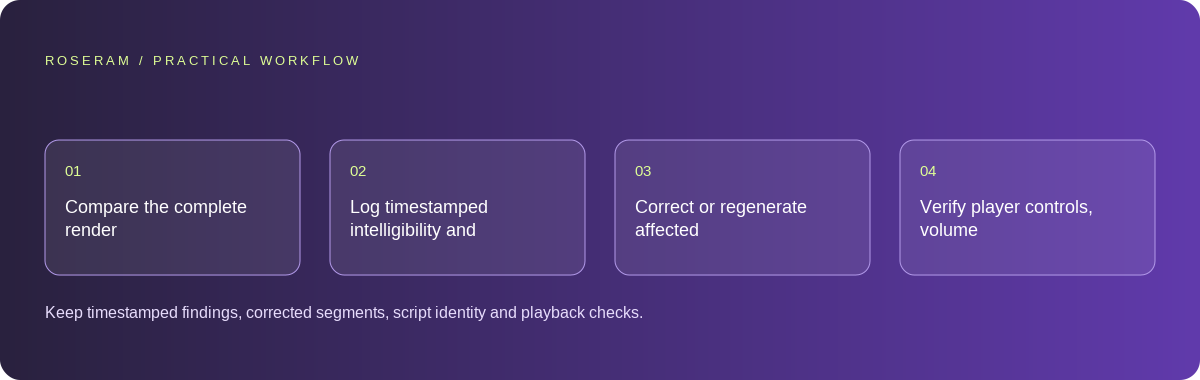
A practical sequence for the work
Use the sequence below as a task boundary, not as a claim that the example has been executed. Work with approved inputs and the project’s actual architecture. If a required integration or permission is unavailable, keep that stage visibly incomplete rather than generating a plausible substitute result.
- Compare the complete render with the approved script and glossary.
- Log timestamped intelligibility and artifact issues.
- Correct or regenerate affected segments and check joins.
- Verify player controls, volume behavior and an accessible text alternative.
A detailed brief you can adapt for your agent
Replace the illustrative context with your approved facts and controlled inputs. Keep the stated boundaries when adapting the brief. The expected deliverable matters more than a particular tool name: ask for an explanation grounded in the inspected material and evidence for the requested outcome.
Review this authorized narration against the approved script. Check the entire recording, mark issues by timestamp and distinguish source-text problems from synthesis artifacts. Verify segment joins and representative playback. Preserve a transcript and usable controls. Do not infer complete quality from a short sample or claim a professional result without review.
Failure modes that an attractive preview can hide
Listening only to the opening can miss failures later in the recording. Avoid claiming studio-quality results from an unreviewed model output. Repeated regeneration may consume budget without solving an unclear script. Fix the source text or pronunciation instructions when they are the actual cause, then verify the revised complete file.
Read more: W3C WAI: accessibility tutorials
Acceptance checks and the evidence to retain
Keep timestamped findings, corrected segments, script identity and playback checks. Record which listening environments were actually used.
| Controlled case | Expected evidence |
|---|---|
| Technical term appears late in the recording | It is checked rather than assumed correct from the opening sample. |
| Two segments are joined | Pacing and level changes do not distract or obscure meaning. |
| Audio cannot be played | The user can access the intended written information. |
Common questions
Is a good opening sample enough?
No. Inspect the complete recording, especially technical terms and segment boundaries.
Should I regenerate everything for one error?
Fix the smallest supported cause, then verify the join and complete delivery.
What is the practical completion criterion?
Keep timestamped findings, corrected segments, script identity and playback checks. Record which listening environments were actually used.
Where the facts come from
Use these links to check the technical facts. The stories here are made-up examples to help you learn. Roseram sells AI tools; our examples are not promises of results.
- W3C WAI: accessibility tutorials ↗
What this source covers
Reference material for accessible content and media; an individual checklist does not establish complete conformance.
References last reviewed 2026-10-11. Writing refreshed 2026-10-14. Spot a mistake? Tell us.