A quiet bell in a busy shop
A small bell hangs over a bakery door. It rings only when hot bread is ready. A push notification works like that bell. A push notification is a short digital note. A far server sends it to your phone screen. It tells you something new just took place.
Meet Nora. Nora made an app for pet care shops. Her smart AI helper writes code very fast. Her app plans dog wash times. Nora wants her app to ring when times change. A good ring helps a client stay calm. It helps them plan their busy day well.
Timing is a big deal for every pet client. An alert must show up at the right time. But too many notes can make a client mad. We will help Nora build a polite alert tool. We will guide her AI code step by step.
Choices to make before you build
First, pick what events truly matter to each client. Nora picks just one event: a moved wash time. Next, decide where that alert should go. You must link each phone to one client account. This stops dog news from reaching the wrong person.
You also need a clear plan for sign-outs. When a client signs out, turn off their alerts. Remove or disable that phone link in your data. What if folks share a family tablet screen? Keep their data safe and private at all times. Never leave old account alerts on shared screens.
Think about folks who say no to alerts. A client can deny permission on their phone. Your app must still show the new visit time. The main screen holds the true facts. An alert is only an extra tap on top.
Tools and inputs for the task
You need a real phone for good test work. Fake test screens on a laptop skip push notes. You also need an active client account in data. Next, you need a safe server tool to push. This tool talks to big phone alert hubs.
Your app needs a special key called a device token. A device token is a long digital address. It tells the alert hub which exact phone rings. Each phone makes its own token for each app. You must link this token to your client.
Gather these items before you prompt your code tool. Keep your setup rules neat in one clear file. A tidy workspace stops bad code from creeping in. You are now ready to set up your phone.
A worked example with practice data
Nora tests her code with practice client Toby. Her practice client tag is `account_id: "user_toby_44"`. Her test phone has `device_token: "tok_spot_99_alpha"`. The test event is `event_name: "bath_time_moved"`. The new wash time is four in the afternoon.
Her coding tool tried to take an easy path. It wrote a local notification instead of remote push. A local notification is an alert set by phone time. It cannot hear news from a far shop server. Those two paths do very different jobs. Nora caught this bug fast.
Nora fixed the code to use a remote push. Her server sends a short note to the token. The phone screen shows: "Your visit time has changed." She keeps private pet care facts off the screen. Toby sees the clean alert and feels glad.
Read more: Expo: notifications
A second use case: the bike shop
Push notes help many other kinds of apps too. Look at Leo and his bike repair shop app. Clients drop off old bikes for tune-up work. Leo wants to tell folks when work is done. His alert event is simple: `bike_ready_for_pickup`.
His server finds the client token and sends news. The short note says: "Your blue bike is ready." The rider gets the note on the bus ride. They can walk over and pay right away. The short note saves them a long wait.
What if a client turns off all app alerts? Leo has no problem with that at all. His app main screen shows a green check mark. The client sees the news upon opening the app. The core service works even when alerts stay off.
Mistakes that happen and quick fixes
One big mistake is sending test notes to everyone. A tired coder might push a test alert out. Never spray a test note across all client tokens. Always send tests to your single test phone token. That keeps real folks calm and happy all day.
Another mistake is trusting provider acceptance as true delivery. An alert hub might accept your request right away. But the phone might be dead or turned off. Or the client turned off the alert switch. Provider acceptance is never proof of receipt on device.
A third trap happens when folks switch phones. When Toby gets a new phone, drop old links. Update your server data on every sign-out event. Clear links protect client privacy each day of the week.
Read more: Expo: notifications
A simple test you can run today
You can run a safe test right now. First, put your test app on your real phone. Tap the button that asks for alert permission. Tap deny when the phone shows the pop-up box. Now, trigger a visit change on your app server.
Check your test phone screen right after you push. The phone screen must stay dark and very quiet. Now, unlock the phone and open up the app. Look at the visit screen inside the app. The new visit time must show clearly there.
Next, turn alerts back on in your phone settings. Send another safe test note from your server tool. Listen for the bell and check the lock screen. You have now checked both sides of your work.
| Controlled case | Expected evidence |
|---|---|
| User denies notifications | The appointment update remains accessible in the app. |
| Shared device signs into another account | Registration follows the approved account-switch policy. |
| Provider accepts a test message | Actual device receipt is checked separately. |
Your clear next action
Pick one single event in your app right now. Write down short, kind words for that alert. Keep private secrets off the lock screen note. Make sure each client links cleanly to one token. Build that first small alert before you add more.
Roseram can help you with this build task. Roseram helps check code files and track event triggers. It keeps your alert rules neat and very clean. Access and limits depend on your current plan. Keep your project steps small as you build.
Use them to make dependable code for your app today. When your first alert rings true, your clients cheer. Take this first step right now.
You are an expert mobile developer. Implement one appointment-change push notification for client account user_toby_44 using our real runtime and provider setup. Do not use local clock reminders for remote updates. Request device permission properly. Save device_token tok_spot_99_alpha to this account. Clear this token if the client signs out. Keep lock-screen text short and free of private health data. Send only to this single controlled device.
Your idea. Your next step.
Put Roseram super intelligence to work.
Bring the idea you keep coming back to. Choose a Roseram plan, then give your project a clear first task. You can think it through, build a first version, and improve it as you learn.
Check current access, plan limits, and pricing before joining.
Your next step
Your quick checklist.
Tick a step as you finish it. Your ticks and feedback stay on this device. They are not public reviews.
0 of 7 complete
Tell the community what you tried or tell us what needs fixing. Include a source if you are correcting a fact.
Your questions, answered
Is a local notification the same as remote push?
No. Local alerts come from inside. Push alerts arrive from the cloud.
Does a device token prove delivery works?
No. The setup step might work. You must confirm the message arrived. Test on your real device.
How do I know the task is done?
Keep your app build notes. Save your test alert numbers. Record what paths you did not test.
What happens when a client turns alerts off?
The user will miss alert sounds. Show the visit time in app. Keep the main screen updated.
Want the technical details?Open the code notes, deeper checks, and common questions.
These notes go deeper. Use the parts that fit your project. Examples are for learning; they are not claims that we tested your app.
A worked example: where the task becomes difficult
A fictional appointment app wants to notify a customer when the shop changes a visit time. The generated code schedules a local reminder but calls it push delivery. Those mechanisms answer different tasks. Define the event and destination account, then use the runtime’s current notification setup with a controlled device. Keep messages free of unnecessary private details that could appear on a lock screen.
Decisions to make before implementation
Choose notification categories, user preferences and conditions for delivery. Map devices to the correct account and remove or disable registrations appropriately on sign-out. Understand the selected provider’s token and receipt contract. Decide what happens when permission is denied or a device is offline. The underlying appointment state must remain available inside the app even if notification delivery fails.
A practical sequence for the work
Use the sequence below as a task boundary, not as a claim that the example has been executed. Work with approved inputs and the project’s actual architecture. If a required integration or permission is unavailable, keep that stage visibly incomplete rather than generating a plausible substitute result.
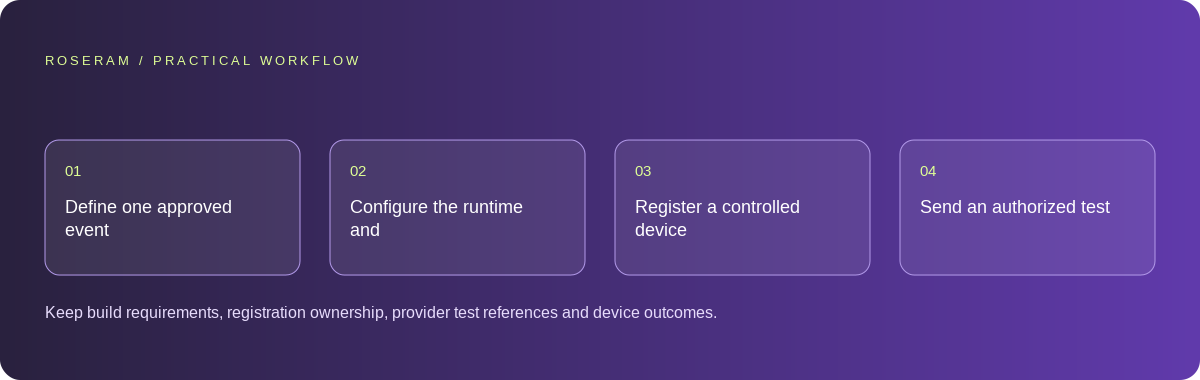
- Define one approved event and its minimal notification content.
- Configure the runtime and provider using current official requirements.
- Register a controlled device under the intended account and request permission.
- Send an authorized test and inspect device receipt and failure handling.
A detailed brief you can adapt for your agent
Replace the illustrative context with your approved facts and controlled inputs. Keep the stated boundaries when adapting the brief. The expected deliverable matters more than a particular tool name: ask for an explanation grounded in the inspected material and evidence for the requested outcome.
Implement one appointment-change notification using the project’s actual runtime and current provider contract. Separate local reminders from remote push. Handle permission, account-bound device registration and token changes. Use a controlled device and minimal lock-screen content. Do not send to all production tokens or claim receipt from provider acceptance alone.
Failure modes that an attractive preview can hide
Notification setup often depends on build configuration and physical-device support. A development preview may not exercise the production path. Avoid sending test messages to every stored token. Also prevent a token left from a previous account on a shared device from receiving the next account’s private events.
Read more: Expo: notifications
Acceptance checks and the evidence to retain
Keep build requirements, registration ownership, provider test references and device outcomes. Identify which delivery paths remain unverified.
| Controlled case | Expected evidence |
|---|---|
| User denies notifications | The appointment update remains accessible in the app. |
| Shared device signs into another account | Registration follows the approved account-switch policy. |
| Provider accepts a test message | Actual device receipt is checked separately. |
Common questions
Is a local notification the same as remote push?
No. Their triggers and delivery paths differ.
Does a device token prove delivery works?
No. Verify provider processing and actual receipt for the intended device and build.
What is the practical completion criterion?
Keep build requirements, registration ownership, provider test references and device outcomes. Identify which delivery paths remain unverified.
Where the facts come from
Use these links to check the technical facts. The stories here are made-up examples to help you learn. Roseram sells AI tools; our examples are not promises of results.
- Expo: notifications ↗
What this source covers
Notification API and setup reference; local reminders and remote push need separate verification.
References last reviewed 2026-10-11. Writing refreshed 2026-10-14. Spot a mistake? Tell us.