Start here to make words match your video
A rider sits on a bus with sound off. Clear words on screen help them follow along. We call these text lines captions. Captions show spoken words on screen while scenes play. They let any client read without sound.
Think of captions like signs on a train ride. If the train passes trees, signs must match. When words show up late, the rider feels lost. Good timing keeps the rider calm and sure. Short lines let the eye rest while reading.
Meet Nora. Nora makes short video clips for a plant shop. Her smart app creates clips that talk to clients. Nora wants each client to enjoy her clips. She wants every line to look clean and right.
Nora knows sound alone will not help all clients. Some clients work in quiet office rooms all day. Other clients ride noisy trains each morning and night. Captions help so no client misses a key fact.
- Captions show spoken words on screen as text.
- They help clients watch clips in quiet rooms.
- Words must show up at the right second.
Gather your tools before you begin
You need a few basic tools before you start. First, export the final sound track from your app. Never work from an early sound draft. A transcript is a typed page of spoken words. It serves as your written script.
Next, make a list of hard terms and names. We call this list a glossary. Nora puts rare plant names in her glossary. The glossary keeps spelling uniform across every clip.
Check your tools inside your normal workspace. Make sure your video app can show text tracks. Do not begin work until your video cut is locked. If you cut scenes later, line times will break.
- Final video file with clean, locked sound.
- Written glossary listing special names and terms.
- Text editor that saves plain caption files.
- Video player app that supports caption tracks.
Follow four easy steps for clean captions
First, make a basic text draft from your sound. Many apps listen to speech and type lines fast. But automatic drafts miss uncommon words. Treat this first text draft only as a rough sketch.
Second, correct words using your approved glossary. Add speaker identification so clients know who talks. This means adding a tag with the speaker name. Include meaningful sound cues as well. For example, write down when a warning bell rings.
Third, align the timing of every short text line. Split long sentences so clients read with ease. Fourth, export your caption file and link it to your app. Test the player button to make sure lines show up.
Review lines in the real player, not just the editor. Words can look fine in a box yet fail on screen. Check both text accuracy and pacing together on screen.
Read more: W3C WAI: accessibility tutorials
A worked example: Nora fixes a tricky term
Let us study a practice case with Nora. Nora made an animated tutor say the code name LeafBotPro. Her speech app typed the words leaf pot row. That silly error would confuse her client.
Nora opens her project glossary file right away. She replaces the phrase leaf pot row with LeafBotPro. Next, Nora spots another problem in the clip. The video editor cut out five seconds of silence.
Because of that cut, later lines show up late. Nora shifts the time marks so words match sound. Now the sentence appears the second the tutor speaks. Her practice run is saved and fixed.
- The speech app typed leaf pot row by mistake.
- Nora checked her glossary and typed LeafBotPro.
- She shifted line times after a five-second cut.
Another use case: loud warehouse training
Consider a safety video inside a loud shipping room. Big carts roll by, so workers mute their phones. Workers read instructions on screen while walking across the floor. They cannot hear spoken tips over the engine noise.
The computer tutor explains how to park electric carts. Two different staff members speak during the quick clip. Nora adds Worker 1 and Worker 2 tags to the text. Now the client knows who gives each order.
She also writes cart horn honks inside clear brackets. Meaningful sounds give equal facts to every client. Hearing workers and deaf workers get the same guidance. Safe habits grow when the full message stays clear.
Read more: W3C WAI: accessibility tutorials
Common mistakes and how to fix them fast
A common error is trusting computer text without review. Speech apps often mishear technical words and names. Always read your lines while you listen to sound. Check every single word against your approved glossary.
Another mistake is leaving the caption track unlinked. A file might sit quietly on your hard drive. Your video player app then displays a blank screen. Always click the player button to confirm tracks load.
Do not burn words directly into the picture frame. Burned text cannot change size on small phone screens. Use closed caption tracks so clients can adjust text size. That choice keeps reading easy on all screens.
Read more: W3C WAI: accessibility tutorials
Verify your work with clear checks
Never guess whether your final video is ready. Verify your output with simple, steady checks. Keep good notes on audio cuts and player tests. This habit creates strong proof that your content works well.
The check table below shows three tests you can run. Compare what your ears hear with what shows on screen. Take time to inspect every single line with care.
Write down your checks before you share video clips. When you update a clip, run these checks again. Steady checks protect your project quality over time.
| Controlled case | Expected evidence |
|---|---|
| Technical package name is spoken | Caption spelling matches the approved term. |
| Final edit removes a sentence | Track timing remains synchronized with the revised audio. |
| Viewer enables captions on a phone | The player exposes and displays the intended track legibly. |
Test your captions on a real phone
Now you can run a quick test on your phone. Send your finished video link to your mobile device. Open the video inside a quiet room with sound off. You want to see how silent viewing feels.
Tap the screen to locate the caption button. Does the caption text turn on without any error? Read lines out loud as the clip moves forward. Notice if lines stay readable without rushing your eyes.
If words linger after speech ends, fix the time marks. Make sure captions do not cover key screen buttons. When your silent mobile check passes, your video is ready.
- Send the video link to your mobile phone.
- Mute the sound and tap the caption button.
- Make sure lines do not rush or block buttons.
Your clear next action
Your next step is very simple. Gather your video draft and write down tricky words. Then review your sound file line by line with care. Keeping these records helps your team stay organized.
Roseram can help with a task like organizing caption timing. Your access and limits depend on your current plan. Open your project dashboard today to review your workspace setup. Right now, your own human review keeps captions accurate, clear, and ready for each client.
You are a caption helper for Nora's garden video. Review this audio draft against our glossary term: LeafBotPro. The text says: 'Welcome to leaf pot row setup.' Fix the spelling error. Mark the speaker as Nora. Add brackets around the background sound: [soft chime]. Return the clean text with start time 00:01 and end time 00:04.
Your idea. Your next step.
Put Roseram super intelligence to work.
Bring the idea you keep coming back to. Choose a Roseram plan, then give your project a clear first task. You can think it through, build a first version, and improve it as you learn.
Check current access, plan limits, and pricing before joining.
Your next step
Your quick checklist.
Tick a step as you finish it. Your ticks and feedback stay on this device. They are not public reviews.
0 of 7 complete
Tell the community what you tried or tell us what needs fixing. Include a source if you are correcting a fact.
Your questions, answered
Are automatic captions ready to publish?
No. You must check the words. Check the meaning and the timing. Test how the player works.
Is a transcript the same as synchronized captions?
No. Both tools help people read. Captions must match the video scenes.
How do I know the task is done?
Save the final sound file. Keep the checked caption file. Save your video test logs too.
What happens if I edit the video later?
You must fix the timing. Match words to the new sound.
Want the technical details?Open the code notes, deeper checks, and common questions.
These notes go deeper. Use the parts that fit your project. Examples are for learning; they are not claims that we tested your app.
A worked example: where the task becomes difficult
A fictional tutorial pronounces a package name that automatic transcription turns into an ordinary word. The final edit also removes a sentence, leaving captions out of sync. Work from the final audio track and a glossary of approved technical terms. Check the exported caption file and the player behavior, not only the text editor where the draft looked correct.
Decisions to make before implementation
Choose the intended languages, caption format and player support. Distinguish verbatim captions from translated subtitles and a written transcript. Preserve meaningful non-speech information where relevant. Keep speaker identification clear when multiple voices matter. Decide how captions are maintained when the video is updated and who verifies translations or specialized terminology.
A practical sequence for the work
Use the sequence below as a task boundary, not as a claim that the example has been executed. Work with approved inputs and the project’s actual architecture. If a required integration or permission is unavailable, keep that stage visibly incomplete rather than generating a plausible substitute result.
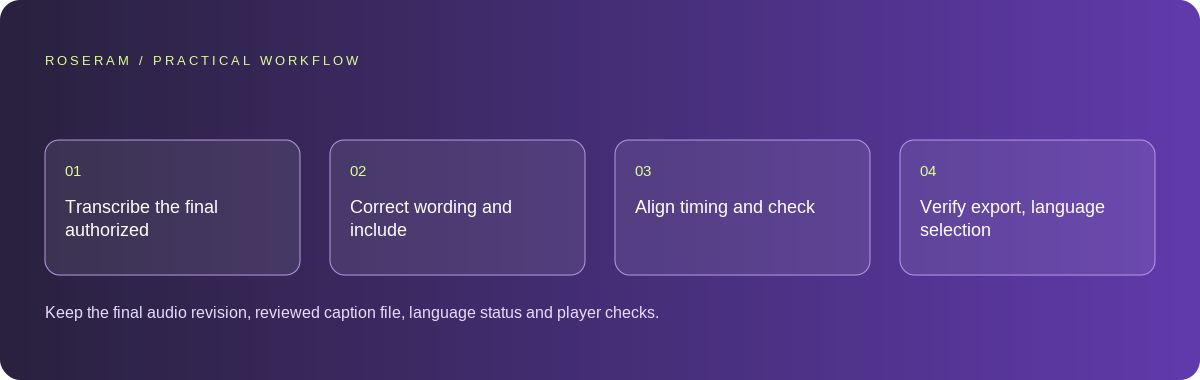
- Transcribe the final authorized audio and apply the approved glossary.
- Correct wording and include meaningful speaker or sound context.
- Align timing and check readable segment lengths in the actual player.
- Verify export, language selection and the updated transcript together.
A detailed brief you can adapt for your agent
Replace the illustrative context with your approved facts and controlled inputs. Keep the stated boundaries when adapting the brief. The expected deliverable matters more than a particular tool name: ask for an explanation grounded in the inspected material and evidence for the requested outcome.
Prepare captions from this final authorized tutorial audio. Use the supplied technical glossary and preserve meaningful speaker or sound context. Correct transcription before timing. Verify the exported track in the intended player and mark unreviewed translations. Do not treat a saved subtitle file as proof it is connected to the video.
Failure modes that an attractive preview can hide
A caption file can exist but never be connected to the video element. Check the visible control and loaded track. Avoid publishing a machine translation as reviewed human accuracy. Captions burned into imagery may be difficult to resize or replace; choose delivery based on the intended player and audience rather than convenience alone.
Read more: W3C WAI: accessibility tutorials
Acceptance checks and the evidence to retain
Keep the final audio revision, reviewed caption file, language status and player checks. Update captions when editing the underlying media.
| Controlled case | Expected evidence |
|---|---|
| Technical package name is spoken | Caption spelling matches the approved term. |
| Final edit removes a sentence | Track timing remains synchronized with the revised audio. |
| Viewer enables captions on a phone | The player exposes and displays the intended track legibly. |
Common questions
Are automatic captions ready to publish?
Review terminology, meaning, timing and player connection before relying on them.
Is a transcript the same as synchronized captions?
No. Both can help, but captions need alignment and delivery through the viewing experience.
What is the practical completion criterion?
Keep the final audio revision, reviewed caption file, language status and player checks. Update captions when editing the underlying media.
Where the facts come from
Use these links to check the technical facts. The stories here are made-up examples to help you learn. Roseram sells AI tools; our examples are not promises of results.
- W3C WAI: accessibility tutorials ↗
What this source covers
Reference material for accessible content and media; an individual checklist does not establish complete conformance.
References last reviewed 2026-10-11. Writing refreshed 2026-10-14. Spot a mistake? Tell us.