When your screen stays all white
Your preview opens to bright white. Take a slow breath now. A blank screen is just an empty browser window. The code tried to start, but something stopped it early. You do not need to rewrite your whole app today.
Think of a kitchen toaster. You push down the small lever. Nothing pops up, and no heat comes out. You do not buy new bread right away. First, you check if the cord is plugged into the wall.
Our friend Elena builds a garden shop online. She uses an AI tool to write her code. Elena clicks the preview button, but she sees only white space. We will follow Elena to fix this quiet screen with calm steps.
- Stay calm and leave your main code files alone.
- Look for the very first hidden mistake.
- Check basic connections before you rebuild anything.
Tools and clues you need
You need a few simple tools to solve this puzzle. First, you need your project files. These files hold your text and your web buttons. You also need your build tool, which packs up code for the web.
Next, you need the console. A console is a log window that shows system notes and red error alerts. You also need environment variables. An environment variable is a secret setting, like a saved password or key, stored outside your code.
Elena gathers her files on her desk. She opens her preview link in a new tab. She makes sure she has the right project keys ready. Now she is ready to inspect her silent website without guessing.
Read more: Chrome: console features reference
Clear steps to find the problem
First, locate the true application package and folder. Many projects hide web code inside another folder. Check the run command next. A run command is the exact instruction that tells the computer to start your program.
Second, read the runtime startup text carefully. A runtime is the active engine that runs your live code. Check if the preview address responds with actual words. Look for the earliest failure after basic web assets load.
Third, fix only that single broken spot. Do not invent a fake home page to pretend it works. Let the screen show honest progress or clear errors. Then refresh your browser to see your true updates.
- Find the real folder holding your web page.
- Read the run command to see how it starts.
- Inspect the earliest error shown in the log.
- Fix that one spot and reload the screen.
Elena and the quiet garden shop
Let us look at Elena's project, named [Sample-Garden-App]. Her project has two inner folders. One folder is named [server-api] and one is named [client-ui]. The preview runner started at the root folder, where no web page lived.
The preview showed pure white because nothing was served there. Elena changed the run folder to [client-ui]. Next, her page loaded basic text, but then crashed. A secret key named [GARDEN_KEY] was completely missing from her settings file.
Her browser script could not finish without that key. Elena did not delete her shop app. She added the missing key to her settings. Her green plants and flower pots appeared right away on the screen.
Read more: Chrome: console features reference
Marcus and the command line tool
Now meet Marcus. Marcus imports a project named [Data-Tool-Box]. He expects to see a colorful web page. Instead, his preview frame stays white forever. A spinning wheel turns and turns without stopping.
Marcus inspects the files. He learns this project is a command-line tool. A command-line tool runs only text inside a terminal, not pages in a web browser. It has no web buttons or web images at all.
Marcus does not build a fake web page to trick the frame. He explains that this tool runs in a terminal box. He tests the code inside his text window. The tool runs well, and Marcus avoids a big mistake.
Common mistakes and quick fixes
A common mistake is using an old preview web link. A preview link can expire when the server stops. Always check if your preview address is fresh. A dead link always brings up a blank frame.
Another mistake is hiding errors behind an endless spinner. An error boundary is a code guard that catches crashes and shows helpful text. Use an error boundary so you see the crash instead of plain white space.
Never add paid add-on tools without clear approval. If a preview cannot run your exact project, keep your code safe. Show an honest message rather than making up a generic dummy site to look successful.
- Check that your preview address is still fresh.
- Add an error guard so bugs show real text.
- Do not invent fake dummy sites to hide bugs.
Check your preview results
Keep records of what you see during each check. You want to see the project type and the run folder. You also need proof that the web address answers with real data. Keep track of every test.
Use this helpful check table to guide your eyes. Compare what your project does with what you expect to see. This keeps your work neat and simple every single time.
| Controlled case | Expected evidence |
|---|---|
| Client is nested inside a monorepo | Preview starts from the correct package and reaches its route. |
| Development process exits | The interface presents a recoverable failure rather than endless loading. |
| HTML loads but a script fails | The relevant client error is exposed with project context. |
A quick test you can perform
You can run an easy five-minute test right now. Open your preview window in your browser. Right-click the blank screen and pick the inspect tool. Click the tab named console to read the log lines.
Look for bright red text at the top of the log. That red line is your very first error. Copy that exact line into your notebook. Does it say a file is missing, or is a key gone?
Now check your server terminal. Look at the text printed when the app booted up. If the server stopped running, write down the exit message. You now have the exact clues needed to fix the screen.
Read more: Chrome: console features reference
What to do right now
Take your recorded clues and fix the first broken item. Set the right starting folder in your settings. Add any missing variable names to your environment setup. Then restart your application build to see your preview.
Roseram can help with this task. Your access and limits depend on your current plan. Roseram can inspect your logs and check folder paths. Use this help to review tough setup steps without stress. Always verify each small fix with your own eyes. Click your preview link now and watch your real work appear.
I am working on [Sample-Garden-App]. The preview screen is completely blank. The project has two inner folders: [server-api] and [client-ui]. Diagnose this blank preview without replacing the project. Identify project type, app root, run command, runtime output, and first browser error. Hydrate missing relevant source safely. Add observable startup stages and a bounded failure state. Report unsupported runtime requirements explicitly; do not create a placeholder website as proof of success.
Your idea. Your next step.
Put Roseram super intelligence to work.
Bring the idea you keep coming back to. Choose a Roseram plan, then give your project a clear first task. You can think it through, build a first version, and improve it as you learn.
Check current access, plan limits, and pricing before joining.
Your next step
Your quick checklist.
Tick a step as you finish it. Your ticks and feedback stay on this device. They are not public reviews.
0 of 6 complete
Tell the community what you tried or tell us what needs fixing. Include a source if you are correcting a fact.
Your questions, answered
Does a responding HTML route prove the app works?
No. Files must load too. Code on the screen must run.
Can every imported repository be previewed as a website?
No. Some code needs special servers. Other tools need different systems. They cannot run here.
How do I know the task is done?
Save the project type. Show the starting link. Prove that the page drew. List any parts still offline.
Why does my preview show an endless spinning circle?
Setup may have stopped early. Or the project type cannot run. It never finished starting.
Want the technical details?Open the code notes, deeper checks, and common questions.
These notes go deeper. Use the parts that fit your project. Examples are for learning; they are not claims that we tested your app.
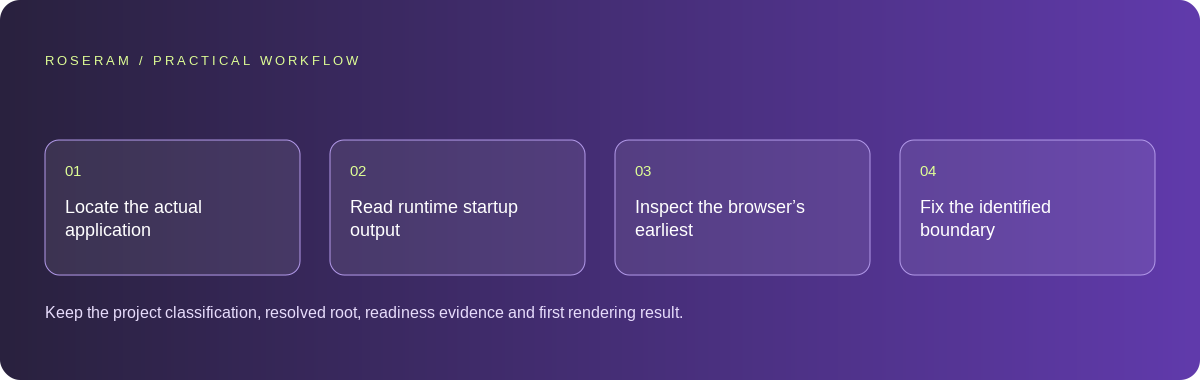
A worked example: where the task becomes difficult
A fictional imported repository includes a backend and a React client in separate folders. The preview runner starts at the root, where no browser app is served. Another project serves HTML but its script fails because an environment variable is missing. Both appear as blank frames. Treat them as different failures and record what the frame actually received before asking the agent to replace the application.
Decisions to make before implementation
Separate source hydration, dependency installation, process start, route readiness and browser rendering. Each stage needs an observable state and an error boundary. Check whether a preview URL is current or tied to an old runtime session. If the repository is a native server or command-line tool, explain that classification instead of inventing an unrelated web homepage to make the frame look successful.
A practical sequence for the work
Use the sequence below as a task boundary, not as a claim that the example has been executed. Work with approved inputs and the project’s actual architecture. If a required integration or permission is unavailable, keep that stage visibly incomplete rather than generating a plausible substitute result.
- Locate the actual application package and inspect its supported run command.
- Read runtime startup output and verify the preview route responds.
- Inspect the browser’s earliest failure after HTML and assets load.
- Fix the identified boundary and show progress or failure instead of indefinite preparation.
A detailed brief you can adapt for your agent
Replace the illustrative context with your approved facts and controlled inputs. Keep the stated boundaries when adapting the brief. The expected deliverable matters more than a particular tool name: ask for an explanation grounded in the inspected material and evidence for the requested outcome.
Diagnose this blank preview without replacing the project. Identify project type, app root, run command, runtime output and first browser error. Hydrate missing relevant source safely. Add observable startup stages and a bounded failure state. Report unsupported runtime requirements explicitly; do not create a placeholder website as proof of success.
Failure modes that an attractive preview can hide
A spinner that never stops can hide a failed installation or an unsupported project type. Add time-bounded readiness checks and show the stage that failed. Avoid automatic paid runtime provisioning without the intended authorization. If a static preview cannot execute the imported application, preserve code access and offer an accurate runtime option rather than claiming the app has loaded.
Read more: Chrome: console features reference
Acceptance checks and the evidence to retain
Keep the project classification, resolved root, readiness evidence and first rendering result. Mark any runtime service that remains unavailable separately from the code edits.
| Controlled case | Expected evidence |
|---|---|
| Client is nested inside a monorepo | Preview starts from the correct package and reaches its route. |
| Development process exits | The interface presents a recoverable failure rather than endless loading. |
| HTML loads but a script fails | The relevant client error is exposed with project context. |
Common questions
Does a responding HTML route prove the app works?
No. Required assets and client execution still need to succeed.
Can every imported repository be previewed as a website?
No. Native servers, tools and unsupported runtimes require an appropriate execution environment.
What is the practical completion criterion?
Keep the project classification, resolved root, readiness evidence and first rendering result. Mark any runtime service that remains unavailable separately from the code edits.
Where the facts come from
Use these links to check the technical facts. The stories here are made-up examples to help you learn. Roseram sells AI tools; our examples are not promises of results.
- Chrome: console features reference ↗
What this source covers
Inspecting messages, stack traces and network errors.
References last reviewed 2026-10-11. Writing refreshed 2026-10-14. Spot a mistake? Tell us.