A worked example: where the task becomes difficult
A fictional landing page has working desktop navigation but its phone menu and signup button do nothing. An invisible full-screen transition layer remains above the page after loading. The buttons look enabled, so the visitor receives no explanation. Reproduce on a controlled mobile viewport, inspect the element receiving the tap and compare it with the visible button. Do not assume every mobile failure is a touch-event problem.
Decisions to make before implementation
Separate hit testing, application state and network behavior. A control can receive the tap but return early because a loading flag never resets. A link may navigate to a fragment with no corresponding section. Use actual semantic buttons and links where appropriate instead of duplicating click and touch handlers that can trigger an operation twice. Check keyboard access as well as the mobile tap path.
A practical sequence for the work
Use the sequence below as a task boundary, not as a claim that the example has been executed. Work with approved inputs and the project’s actual architecture. If a required integration or permission is unavailable, keep that stage visibly incomplete rather than generating a plausible substitute result.
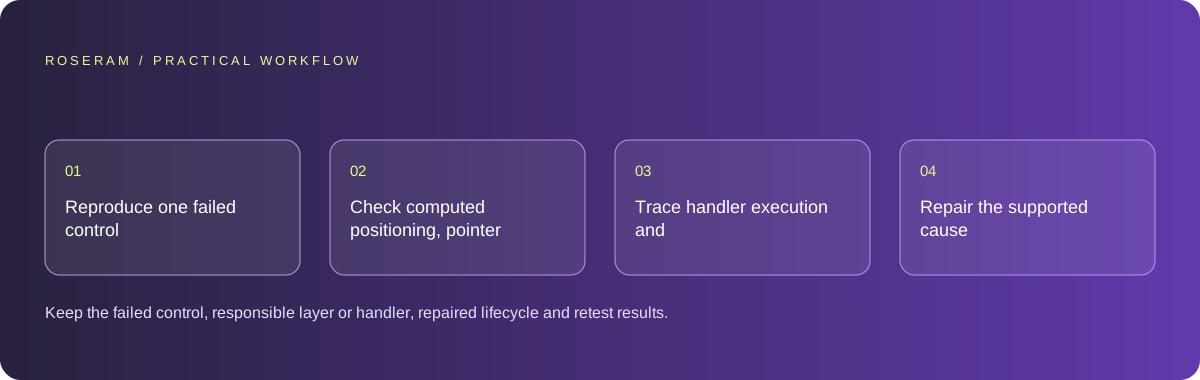
- Reproduce one failed control and inspect the element above its visible position.
- Check computed positioning, pointer behavior, dialog layers and disabled state.
- Trace handler execution and the resulting navigation or request.
- Repair the supported cause and verify unrelated mobile controls and keyboard behavior.
A detailed brief you can adapt for your agent
Replace the illustrative context with your approved facts and controlled inputs. Keep the stated boundaries when adapting the brief. The expected deliverable matters more than a particular tool name: ask for an explanation grounded in the inspected material and evidence for the requested outcome.
Investigate the unresponsive mobile menu and signup CTA. Trace the topmost tap target, control state and first relevant client error. Preserve semantic controls and repair the supported layer or handler issue. Do not globally disable modal pointer handling. Verify tap, repeated modal closure and keyboard activation; report the actual cause.Failure modes that an attractive preview can hide
Setting every overlay to ignore pointer events can make dialogs impossible to use or expose the page beneath a modal. Fix the lifecycle of the layer that should have closed. Avoid installing a touch library simply to conceal a client exception. Test scrolling and opening another modal afterward so the repair does not leave body scrolling or focus permanently locked.
Technical references: MDN: accessibility · Chrome: console features reference
Acceptance checks and the evidence to retain
Keep the failed control, responsible layer or handler, repaired lifecycle and retest results. A screenshot proves appearance; retain interaction evidence for the behavior that was broken.
| Controlled case | Expected evidence |
|---|---|
| Phone visitor taps the main CTA | The expected modal opens once and its fields can be used. |
| Menu opens and closes repeatedly | No invisible layer blocks subsequent page interactions. |
| Keyboard user activates the same control | The corresponding action remains available with visible focus. |
Specific answers
Common questions
Should I add a separate touch handler?
Only when a real requirement calls for it; ordinary button activation should not need duplicate handlers.
Can an invisible overlay block every button?
Yes. Check hit targets and layer state before rewriting individual controls.
What is the practical completion criterion?
Keep the failed control, responsible layer or handler, repaired lifecycle and retest results. A screenshot proves appearance; retain interaction evidence for the behavior that was broken.
Sources and editorial method
These references support the indicated technical facts. Workflows, examples and decision tables are original Roseram analysis. Illustrative costs are not vendor prices. No search volume, organic difficulty, ranking result or product endorsement is implied.
- MDN: accessibility ↗
Reference for meaningful controls and accessible web interactions.
- Chrome: console features reference ↗
Inspecting messages, stack traces and network errors.
Roseram offers AI software and may compete with tools discussed here. Sources checked 2026-10-11. Send a sourced correction.
Your next step
Keep a practical checklist.
Mark your progress. This checklist and helpfulness choice are saved on this device only; they are not public reviews.
0 of 5 complete
Share your experience in the community or submit a sourced correction. Public experiences remain separate from editorial claims.
Bring your next idea
Keep learning. Build with context.
Get Roseram model and workspace reopening updates. The guide remains available whether or not you subscribe.
Explore the workspace guide →